How to Track Injection-Site Rotation in PeptideCalc
Direct answer
When you log a dose, choose its Administration Type and then select the matching Injection Site or other location field. PeptideCalc shows the last relevant site in the Log Dose sheet. To see a hint before opening the sheet, go to Schedule, tap the ellipsis menu, choose Display & Filters, and turn on Show Previous Site.
PeptideCalc can attach a site to each log and use previous records to show a history hint. The field label changes with Administration Type: injection methods use Injection Site, while other supported methods can show IV Site, Nasal Side, or Application Area.
The app reports what you recorded. It does not select an administration type or recommend where to administer anything. Use only the method and site instructions supplied by a qualified clinician.
Scope: This page explains PeptideCalc controls and software workflows. It does not choose a medication, dose, liquid, syringe mark, preparation method, or administration technique. Use the product label and instructions from a licensed clinician or pharmacist to decide whether any input or result is appropriate. Site history is a recordkeeping aid, not an administration-site recommendation or a substitute for clinical technique instructions.
These labels and steps were checked in the public PeptideCalc 2.7.7 app on .
See the steps in PeptideCalc
Step-by-step instructions
Step 1: Open the correct Log Dose sheet
Open a scheduled item from Schedule or start an as-needed log from the saved protocol. Confirm that the sheet belongs to the record you intend to save.
Step 2: Choose Administration Type
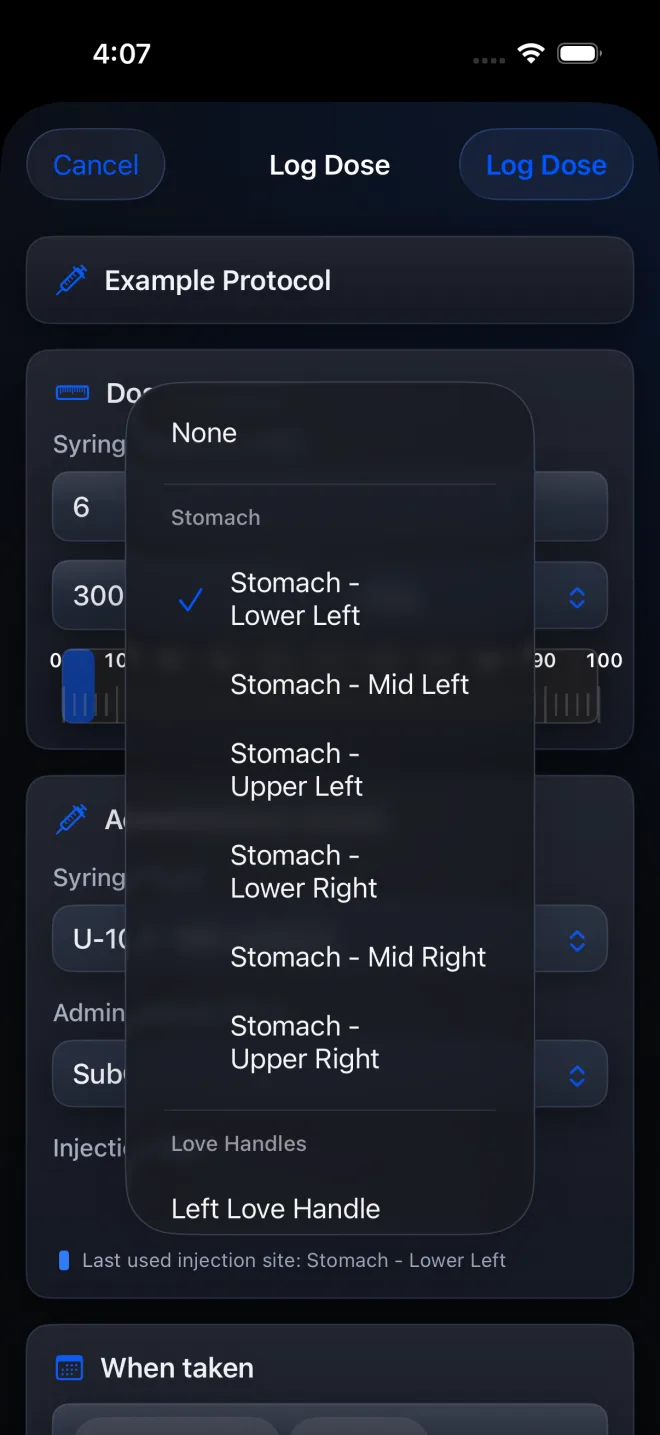
Under Administration details, select the method that was actually used. The next location field is based on that method; Oral does not show a site field.
Step 3: Select the recorded site
Open Injection Site or the method-specific location field and choose the site that matches what occurred. Choose None if no site should be stored.
Step 4: Read the last-used hint in Log Dose
When relevant history exists for the selected administration method, the sheet shows a line such as Last used injection site beneath the picker. Use it only as history context.
Step 5: Turn on Show Previous Site for pending cards
Open Schedule, tap the ellipsis Schedule options menu, choose Display & Filters, then tap Show Previous Site. The menu changes to Hide Previous Site while the preference is on.
Step 6: Review the hint before logging
Pending dose cards can now show Previous: [site] near Log Dose when matching history is available. The hint is based on recorded history for the relevant method; it is not an instruction to choose a different site.
Step 7: Check the active schedule's site summary
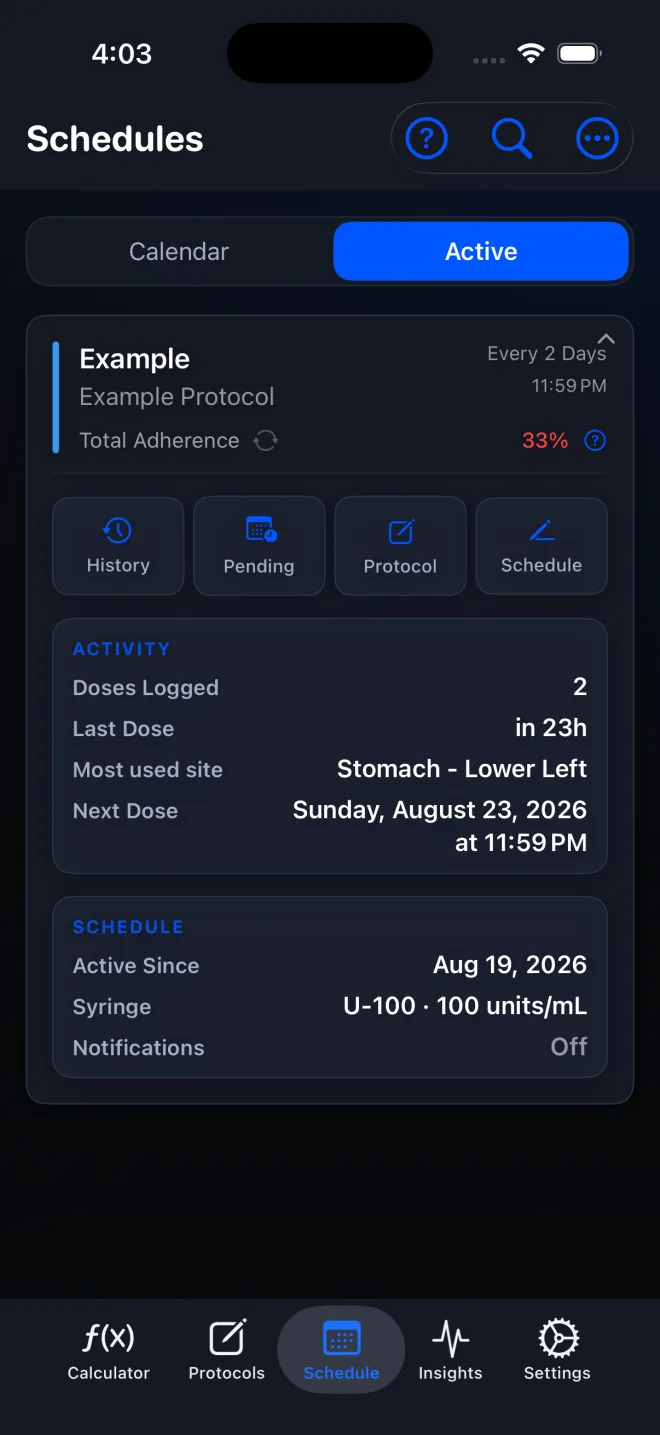
Expand an active schedule and review Most used site in its Activity section when site history is available. This summarizes recorded use; it does not choose the next site.
Step 8: Review sites in Log History
Open Schedule options > Log History and expand a record to review its stored administration details. Swipe an editable row and tap Edit if the recorded method or site needs correction.
Step 9: Manage the available site list
Open Settings > Treatment & Reminders > Administration Sites to add, hide, reorder, or restore sites. Hidden or deleted site options remain visible in old history but stop appearing for new logs.
Questions about this PeptideCalc workflow
How do I see the previous injection site in PeptideCalc?
In Schedule, open the ellipsis menu, choose Display & Filters, and tap Show Previous Site. Pending cards show a Previous hint when matching history exists, and the Log Dose sheet also shows the last relevant site under its picker.
Does PeptideCalc tell me which injection site to use next?
No. It only shows the site stored in relevant previous history. The hint is not a rotation recommendation or administration instruction.
Why is there no Injection Site field?
Select Administration Type first. Injection Site appears for supported injection methods; other methods can show a different location label, and Oral does not use a site field.
Can I correct a site after saving the log?
Yes, for an editable record. Open Log History, swipe the row, choose Edit, correct Administration Type or the site field, and save.
Where can I see the most-used site for one schedule?
Open Schedule > Active and expand the schedule. When site history is available, the Activity section shows Most used site as a summary of recorded logs, not a recommendation for the next dose.
What happens to history if I hide or delete a custom site?
The site is removed from new-log pickers but remains on past doses and in history.
Does the previous-site hint mix different administration methods?
The app resolves previous-site history against the selected or saved administration method, so an injection-site hint is drawn from relevant method history rather than every location ever recorded.
Follow the steps in PeptideCalc
Check Apple's listing for the current price, compatibility, and availability.

Related PeptideCalc resources
Browse all PeptideCalc tutorials.