How to Review Dose Log History in PeptideCalc
Direct answer
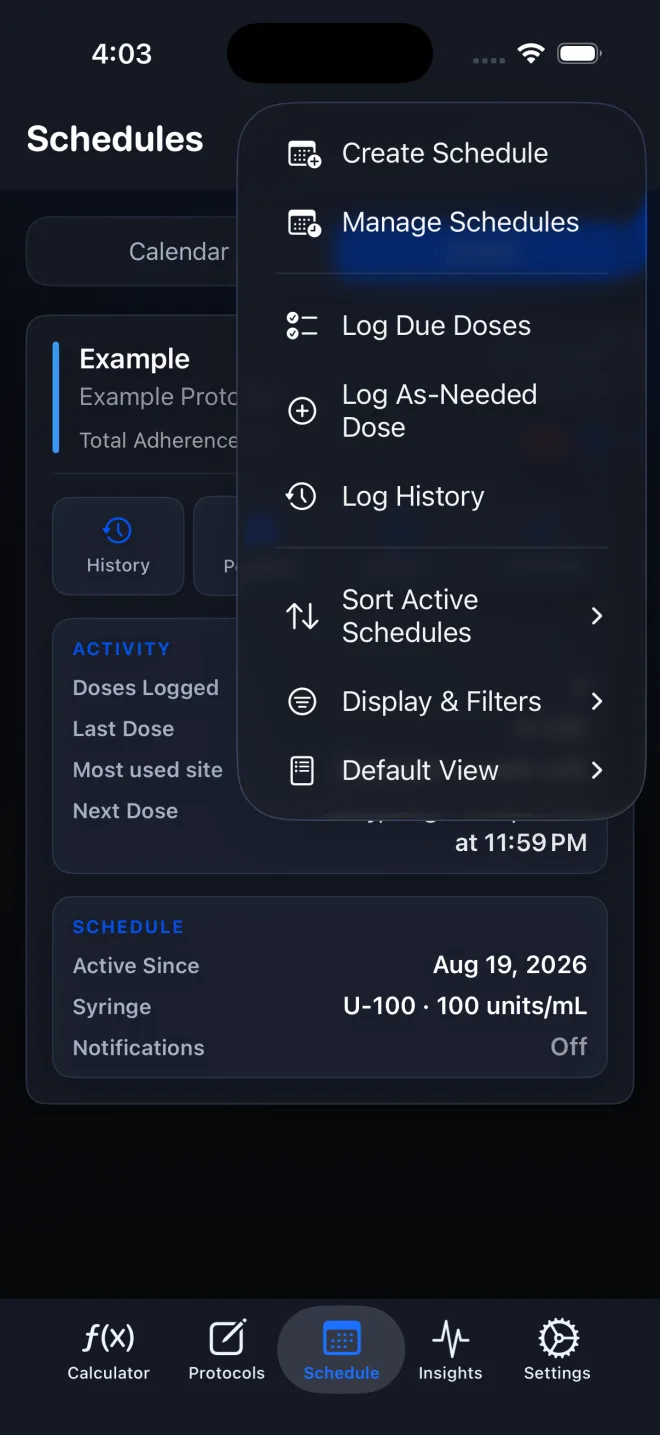
Open Schedule, tap the ellipsis menu, and choose Log History. Filter by protocol, status, or date; tap a row to see its details; swipe left for the actions available to that record. The Log history options menu can export the current history as CSV or PDF.
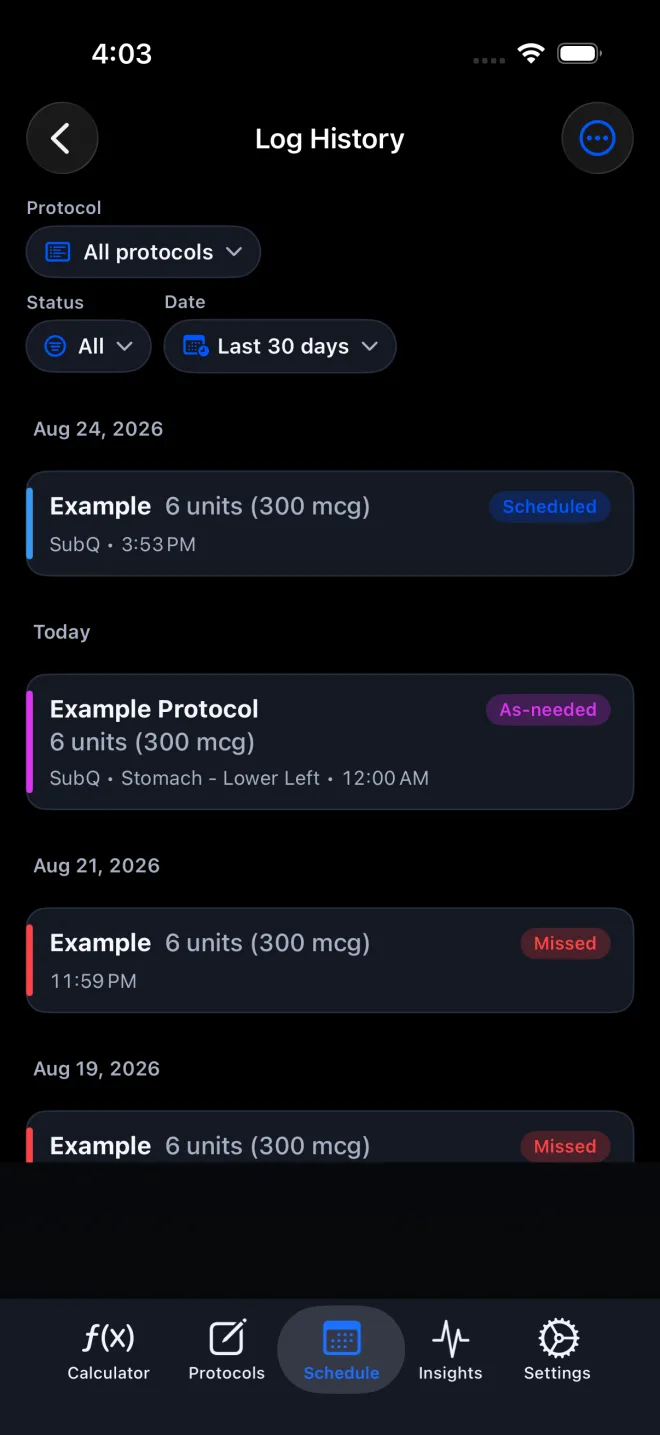
Log History brings completed, missed, skipped, and as-needed records into one chronological view. The filters change which entries are shown and which records are included when you export or clear a filtered view.
Editing history changes stored records and can affect schedule status. Review the entry and any confirmation carefully before saving, moving, or deleting it.
Scope: This page explains PeptideCalc controls and software workflows. It does not choose a medication, dose, liquid, syringe mark, preparation method, or administration technique. Use the product label and instructions from a licensed clinician or pharmacist to decide whether any input or result is appropriate. Log History is a record-management screen. This guide does not recommend changing a completed, missed, skipped, or as-needed record.
These labels and steps were checked in the public PeptideCalc 2.7.7 app on .
See the steps in PeptideCalc
Step-by-step instructions
Step 1: Open Log History from Schedule
Select Schedule in the tab bar, tap the ellipsis button labeled Schedule options, and choose Log History.
Step 2: Choose one protocol or all protocols
Use the protocol filter to keep All protocols selected or focus the list on one saved protocol. Protocol names appear on rows when the all-protocol view needs to distinguish them.
Step 3: Filter by status and date
Use the status filter for All, Logged, Missed, Skipped, or Missed & skipped. Use the date filter for Last 30 days, Last 90 days, Last year, or All time.
Step 4: Tap a row to inspect the log
Tap a history row to expand the available details, including the recorded date, status, amount summary, notes, and administration site when those values exist.
Step 5: Swipe left for record-specific actions
Swipe an eligible row left to reveal Edit and the status actions that apply. A scheduled record can offer actions such as Log Dose, Skip, Mark Missed, or Back to schedule depending on its current state. An as-needed record can be edited or deleted.
Step 6: Review changes before saving
When you edit a log, check the date, amount, method, site, and notes before tapping Save. Moving an eligible completed scheduled log to another day can show a separate choice to re-anchor future cadence.
Step 7: Export the current history
Tap Log history options in the top-right corner, choose Export log history, then choose CSV or PDF. The export follows the current history scope and filters.
Step 8: Treat Clear log history as destructive
Clear log history deletes the records in the selected scope after confirmation. Check the protocol, status, and date filters first. Export a copy before clearing if you may need the records later.
Questions about this PeptideCalc workflow
Where is Log History in PeptideCalc?
Open Schedule, tap the ellipsis Schedule options menu, and choose Log History.
Can I see scheduled and as-needed doses together?
Yes. Log History combines both record types. Use All protocols and the status and date filters to control the view.
How do I correct a log from Log History?
Swipe an editable row left, tap Edit, change the stored fields, and tap Save. Review any re-anchor choice separately if you changed the date of an eligible completed scheduled log.
Can I export only one protocol or status?
Yes. Set the protocol, status, and date filters first, then choose Export log history and CSV or PDF. The export uses the current scope.
What does Back to schedule do?
For an eligible scheduled history item, Back to schedule returns it to the schedule instead of leaving it in its current completed, missed, or skipped state. It is not available for as-needed records.
Can a cleared Log History be undone?
No. Clear log history is presented as permanent. Check the active filters and create an export first if you may need a copy.
Follow the steps in PeptideCalc
Check Apple's listing for the current price, compatibility, and availability.

Related PeptideCalc resources
Browse all PeptideCalc tutorials.