How to Set Dose Reminder Notifications in PeptideCalc
Direct answer
Two controls must be on: Settings > Treatment & Reminders > Notifications > Dose Reminder Notifications, and Reminders inside the individual schedule. Allow notifications when iOS asks. If reminders still do not arrive, check the System Permission status in PeptideCalc, open iOS Settings when it says Denied, and confirm the schedule is active rather than paused or finished.
PeptideCalc has a global notification switch and a per-schedule Reminders switch. The global switch allows dose reminders across the app; the schedule switch decides whether that particular plan should notify at its scheduled dose times.
iOS controls final delivery permission, Focus, and time-sensitive access. Turning reminders off does not delete the schedule or stop the app from tracking its calendar entries.
Scope: This page explains PeptideCalc controls and software workflows. It does not choose a medication, dose, liquid, syringe mark, preparation method, or administration technique. Use the product label and instructions from a licensed clinician or pharmacist to decide whether any input or result is appropriate. Reminders mirror schedule dates and times already configured in PeptideCalc. They do not choose when a dose should occur.
These labels and steps were checked in the public PeptideCalc 2.7.7 app on .
See the steps in PeptideCalc
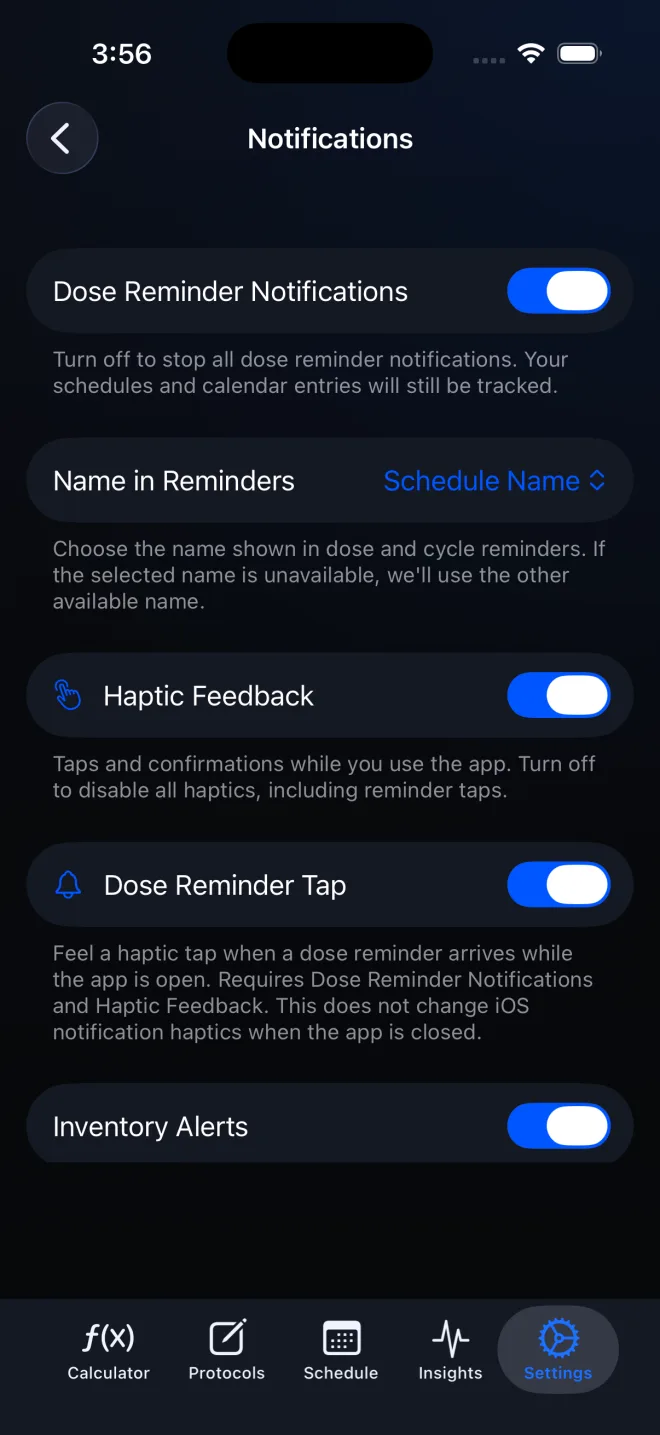
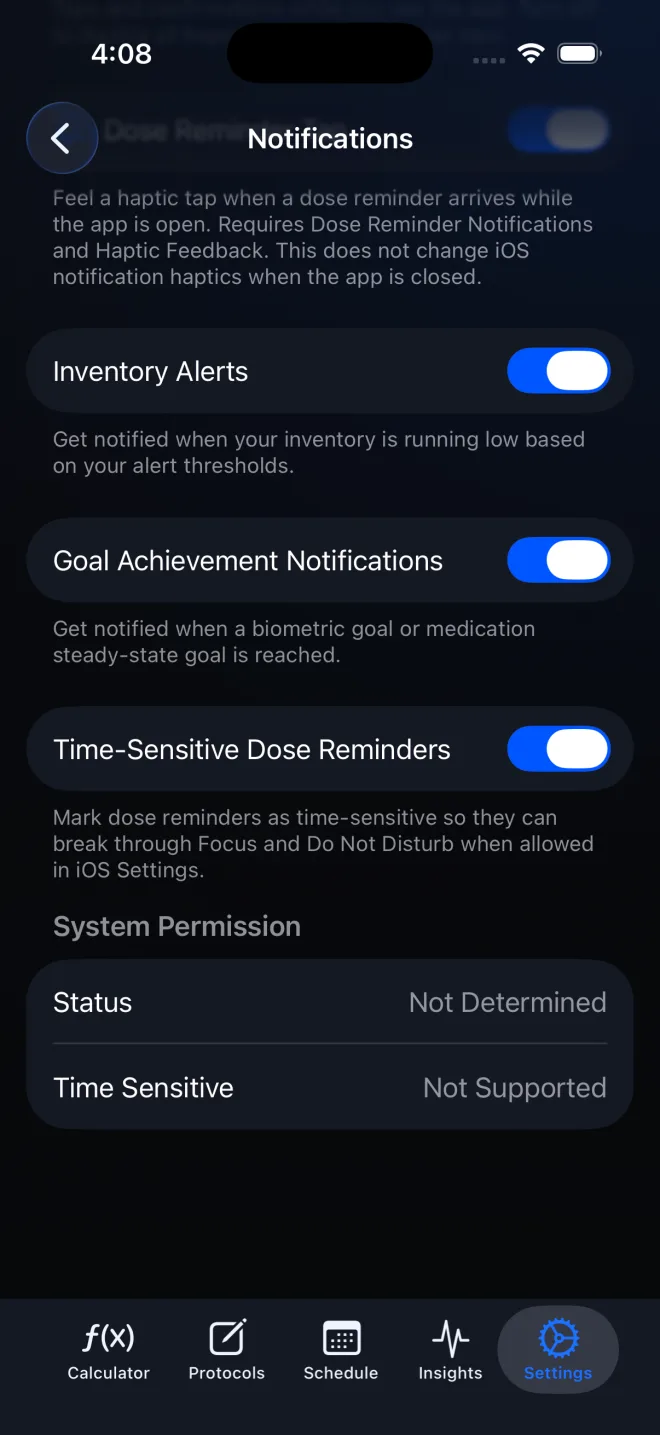
Step-by-step instructions
Step 1: Open Notifications
Open Settings, tap Treatment & Reminders, then tap Notifications.
Step 2: Turn on Dose Reminder Notifications
Turn on Dose Reminder Notifications. If iOS presents its permission sheet, allow notifications. If permission was previously denied, PeptideCalc shows Notifications Turned Off and offers Open iOS Settings.
Step 3: Choose the name shown in reminders
Use Name in Reminders to choose Schedule Name or Medication Name. If the selected name is unavailable for a reminder, PeptideCalc uses the other available name.
Step 4: Choose whether dose reminders are time-sensitive
Turn on Time-Sensitive Dose Reminders if you want eligible dose alerts to break through Focus or Do Not Disturb when iOS allows it. This switch depends on Dose Reminder Notifications and the separate iOS time-sensitive setting.
Step 5: Turn on Reminders for the schedule
When creating a schedule, turn on Reminders in Save & Schedule. For an existing plan, open Schedule > Active, expand the schedule, tap Schedule to open Edit Schedule, and turn on Reminders.
Step 6: Save the schedule changes
Review the schedule's start date, end date, dose times, and cycling settings, then save. Reminders follow those configured times and pause during cycling off windows.
Step 7: Check all three delivery layers
If an alert is missing, confirm Dose Reminder Notifications is on globally, Reminders is on for that schedule, and System Permission says Allowed or Provisional. Also check that the plan is active; PeptideCalc does not schedule dose notifications for paused or finished plans.
Questions about this PeptideCalc workflow
Why are PeptideCalc dose reminders not working?
Check the global Dose Reminder Notifications switch, the individual schedule's Reminders switch, the System Permission status, and whether the schedule is active. If permission says Denied, tap Open iOS Settings and enable notifications there.
What is the difference between the two reminder switches?
Dose Reminder Notifications is the app-wide control. Reminders inside a schedule controls that plan only. Both must allow reminders for PeptideCalc to schedule its dose alerts.
Does turning off dose notifications delete my schedules?
No. The Notifications screen says schedules and calendar entries continue to be tracked when the global dose reminder switch is off.
Do reminders run during a cycling schedule's off window?
No. Dose reminders follow the configured cycle and pause during off windows. Separate Advanced cycle alerts can optionally warn before an on or off switch.
Can reminders break through Focus or Do Not Disturb?
Time-Sensitive Dose Reminders can do so when both PeptideCalc and iOS allow time-sensitive notifications. iOS remains in control of Focus and notification delivery.
Can the reminder show the medication name instead of the schedule name?
Yes. In Notifications, set Name in Reminders to Medication Name. If that name is unavailable, PeptideCalc falls back to the other available name.
Follow the steps in PeptideCalc
Check Apple's listing for the current price, compatibility, and availability.

Related PeptideCalc resources
Browse all PeptideCalc tutorials.