How to Create an On-and-Off Cycling Schedule in PeptideCalc
Direct answer
Open a saved protocol's Schedules, add or edit a schedule, then turn on Enable Cycling. Choose Units and enter the supplied On for and Off for durations. The repeating cycle is anchored to the schedule's Start Date.
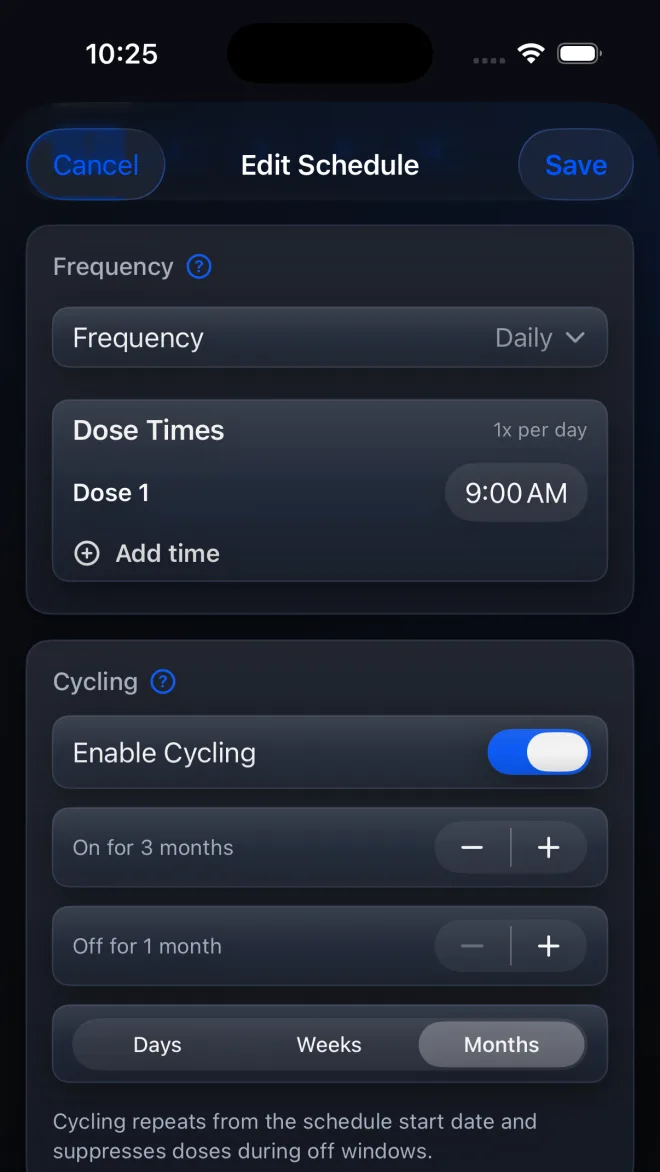
Cycling makes one schedule repeat an on window followed by an off window. PeptideCalc uses the schedule Start Date as the cycle anchor and suppresses scheduled doses and dose reminders during off windows.
Enter only the frequency, dates, and on/off pattern that you have independently chosen or were instructed to follow. The app does not design a cycling plan.
Scope: This page explains PeptideCalc controls and software workflows. It does not choose a medication, dose, liquid, syringe mark, preparation method, or administration technique. Use the product label and instructions from a licensed clinician or pharmacist to decide whether any input or result is appropriate. PeptideCalc repeats the On for and Off for values you enter; it does not choose a cycle length or decide whether cycling is appropriate.
These labels and steps were checked in the public PeptideCalc 2.7.7 app on .
See the steps in PeptideCalc
Step-by-step instructions
Step 1: Open the protocol's Schedules
Open Protocols, tap the three-dot menu for the saved protocol, then tap Schedules.
Step 2: Add or edit a schedule
Tap Add schedule to create one, or tap an active schedule to edit it. Set Frequency, Start Date, and dose times from the schedule you intend to track.
Step 3: Turn on Enable Cycling
Scroll to the Cycling section and turn on Enable Cycling. The On for, Off for, and Units controls will appear.
Step 4: Enter On for and Off for
Choose the supplied Units, then enter the On for and Off for durations. Check the Start Date because PeptideCalc repeats the cycle from that date.
Step 5: Choose optional cycle alerts
If Reminders is on, open Advanced cycle alerts to optionally enable Get ready before cycle restarts or Warn when on-cycle is almost over.
Step 6: Save the schedule
Review the schedule summary, then tap Save. Check Calendar to confirm that on and off windows align with the Start Date and durations you entered.
Questions about this PeptideCalc workflow
When does a PeptideCalc cycle begin?
The cycle is anchored to the schedule's Start Date. PeptideCalc repeats the On for and Off for durations from that date.
Will dose reminders appear during an off window?
No. Cycling suppresses the schedule's doses and dose reminders during off windows. Optional cycle-change alerts are separate.
Does PeptideCalc choose how long the on and off windows should be?
No. PeptideCalc repeats the Units, On for, and Off for values you enter. Use only a pattern you have independently chosen or were instructed to track.
Follow the steps in PeptideCalc
Check Apple's listing for the current price, compatibility, and availability.

Related PeptideCalc resources
Browse all PeptideCalc tutorials.