How to Shift a Schedule in PeptideCalc
Direct answer
Open Settings > Treatment & Reminders > Schedule Behaviors and choose Ask Every Time, Always Shift, or Never Shift. PeptideCalc only applies this behavior to an eligible scheduled dose logged on a different calendar day. Same-day logs, as-needed doses, daily schedules, multiple doses per day, multiple weekdays per week, and Custom Days do not shift. Eligible cycling schedules always ask before the whole cycle moves.
Schedule shifting changes future calendar dates; it does not change the amount recorded in the dose log. The app evaluates the schedule pattern, the original scheduled day, the recorded day, and the selected Schedule Behavior before it offers or applies a shift.
This guide explains the software rules so you can recognize what the app will do. It does not recommend whether your future dates should move. Review the dates shown and follow the schedule instructions you already have.
Scope: This page explains PeptideCalc controls and software workflows. It does not choose a medication, dose, liquid, syringe mark, preparation method, or administration technique. Use the product label and instructions from a licensed clinician or pharmacist to decide whether any input or result is appropriate. A shift changes eligible future schedule dates and, for a cycle, its future cycle boundaries. It does not decide whether changing the cadence is appropriate.
These labels and steps were checked in the public PeptideCalc 2.7.7 app on .
See the steps in PeptideCalc
Step-by-step instructions
Step 1: Open Schedule Behaviors
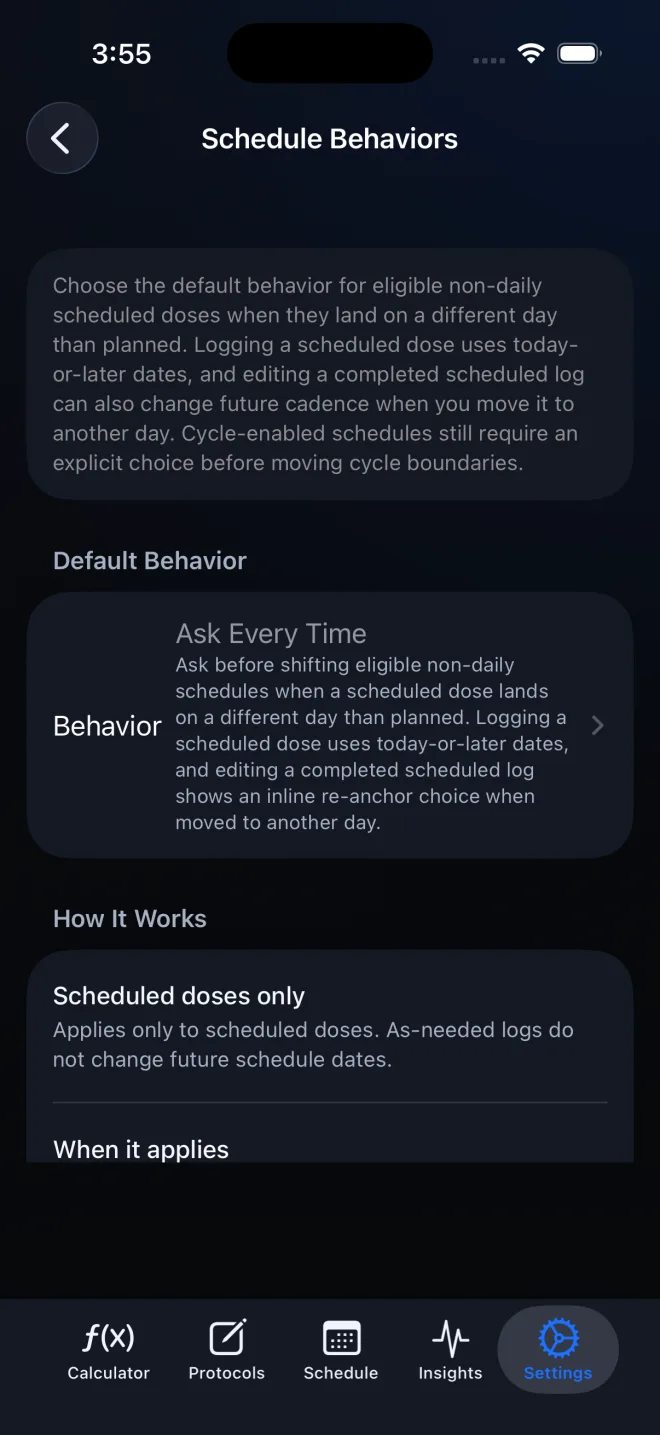
Open Settings, tap Treatment & Reminders, then tap Schedule Behaviors. You can also open Schedule, tap the ellipsis menu, choose Display & Filters, and open Schedule Behaviors.
Step 2: Choose Ask Every Time, Always Shift, or Never Shift
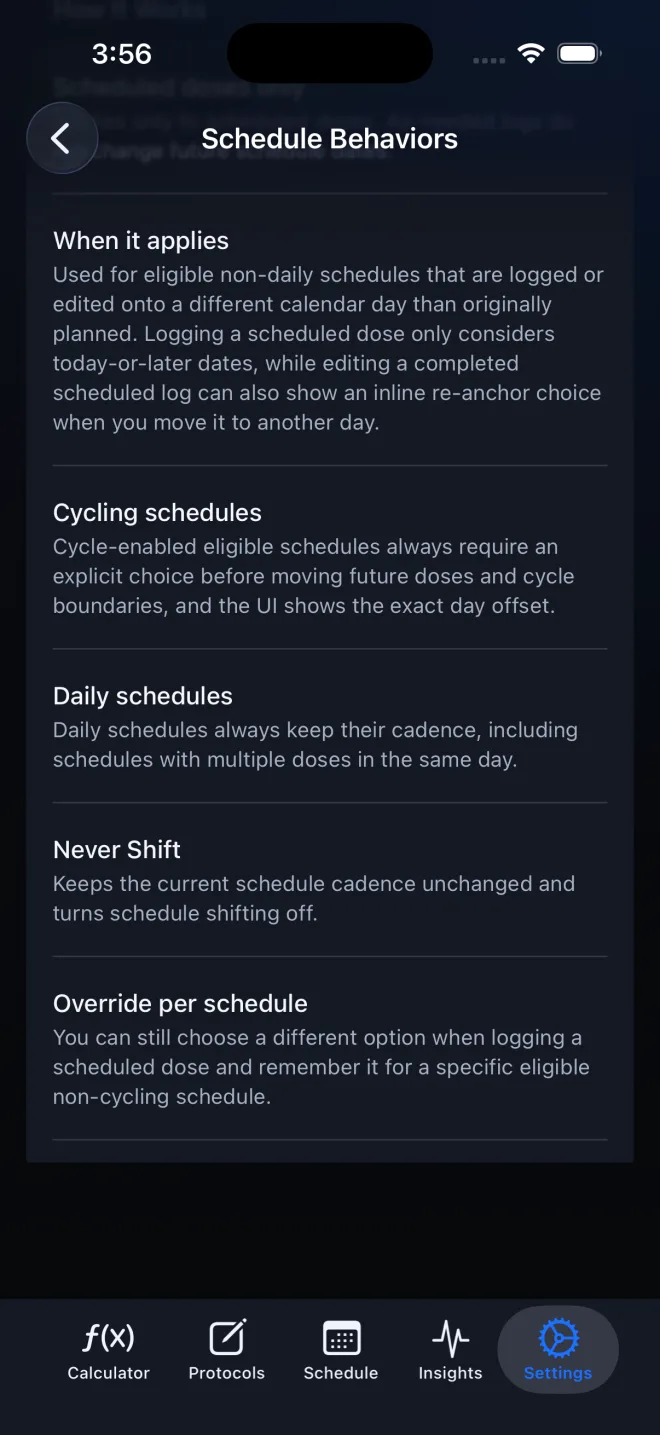
Ask Every Time shows a decision for each eligible non-cycling off-date log. Always Shift moves eligible future doses without that prompt. Never Shift records the dose while leaving the future cadence unchanged. Per-schedule remembered choices can override the global choice for an eligible non-cycling schedule.
Step 3: Log the scheduled dose on a different calendar day
Open the existing scheduled item and set When taken to the day it actually occurred. For a new scheduled-dose log, shift eligibility is considered when the recorded date is today or later and differs from the planned calendar day. A same-day time change does not qualify.
Step 4: Check whether the schedule pattern can shift
The supported patterns are one dose per day on a single weekday each week, every N weeks, monthly, or every N days when N is greater than 1. The schedule must be a scheduled plan rather than an as-needed log.
Step 5: Read the non-cycling prompt
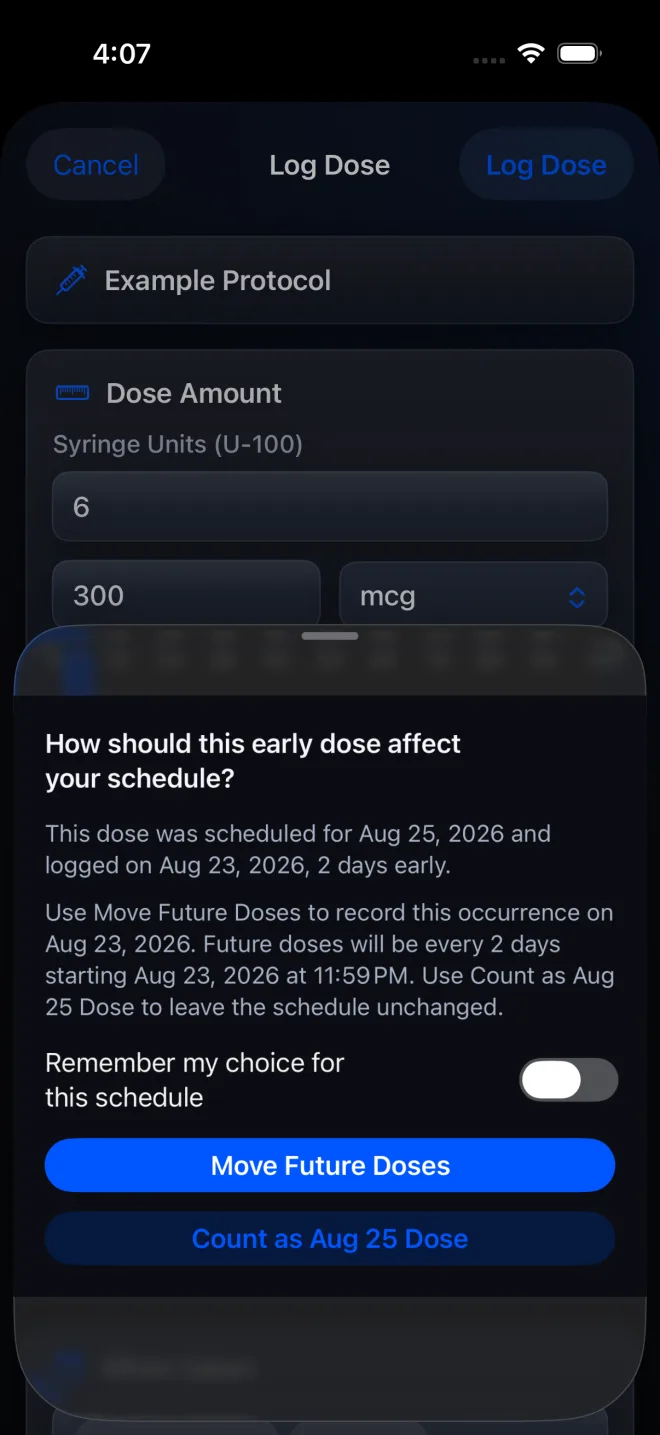
With Ask Every Time, an eligible non-cycling log offers Move Future Doses or Count as [scheduled date] Dose. Read the dates shown before choosing. The Remember my choice for this schedule switch stores the choice for that schedule only.
Step 6: Make an explicit choice for an eligible cycle
An eligible cycle-enabled schedule always asks, regardless of the global Schedule Behavior. The actions are Shift Entire Cycle Forward or Shift Entire Cycle Earlier, depending on direction, and Keep Current Cycle. Cycle prompts do not offer a remembered per-schedule choice.
Step 7: Use re-anchoring when editing a completed scheduled log
When you edit a completed scheduled log and move When taken to today or a later day that differs from the planned date, the Edit Log screen can show Re-anchor future schedule to this date. For a cycle, the wording includes the cycle. Leave the choice off to change the log without moving future cadence. An edited date before today is not eligible to re-anchor the schedule.
Step 8: Know when no shift prompt appears
PeptideCalc does not prompt or shift for the same calendar day, an as-needed dose, a daily schedule, multiple doses per day, multiple weekdays in one week, an every-one-day schedule, or Custom Days. It also does not prompt when Never Shift applies to an eligible non-cycling schedule.
Questions about this PeptideCalc workflow
When does PeptideCalc ask to shift future doses?
With Ask Every Time, it asks when a scheduled dose is logged on a different eligible day and the schedule is a supported non-daily, one-dose-per-day pattern. Eligible cycle-enabled schedules always ask.
Why did I not get a schedule-shift prompt?
Common reasons are that the log stayed on the same calendar day, it was an as-needed dose, the schedule is daily, it has multiple dose times or multiple weekdays, it uses Custom Days, or its behavior is Never Shift. A new scheduled-dose log also only evaluates today-or-later recorded dates for shifting.
What does Always Shift do?
For an eligible non-cycling schedule, Always Shift moves future doses without asking each time. A supported cycle-enabled schedule still requires an explicit Shift Entire Cycle or Keep Current Cycle choice.
Can I remember a different choice for one schedule?
Yes, for an eligible non-cycling schedule. Turn on Remember my choice for this schedule in the prompt. You can review or clear per-schedule choices from Schedule Behaviors in Settings.
Can editing a completed log move the schedule?
Only in an eligible pattern when the edited When taken date is today or later and differs from the planned date. That can show an inline Re-anchor future schedule choice. An edited date before today changes the stored history but does not re-anchor future cadence.
Does shifting change the logged dose amount?
No. Schedule shifting changes eligible future dates. The logged amount remains the value saved in that dose record.
Follow the steps in PeptideCalc
Check Apple's listing for the current price, compatibility, and availability.

Related PeptideCalc resources
Browse all PeptideCalc tutorials.