How to Use the Injectable Pen Calculator in PeptideCalc
Direct answer
Open Calculator, choose Injectable Pen under Medication Type, select a matching medication entry or Custom, choose the labeled packaged strength, and enter the supplied per-injection dose. Optional Pen Limits and Supply fields can record label details and estimate remaining injections when those controls apply.
Injectable Pen is organized around a packaged device and a per-injection amount. It does not ask for BAC water, vial content, or a syringe draw because those belong to vial workflows.
Match the medication, strength, units, and device information to the actual label. Presets are data-entry shortcuts, not a recommendation or confirmation that a product or dose is appropriate.
Scope: This page explains PeptideCalc controls and software workflows. It does not choose a medication, dose, liquid, syringe mark, preparation method, or administration technique. Use the product label and instructions from a licensed clinician or pharmacist to decide whether any input or result is appropriate. The pen workflow records label and supplied dose information. It does not choose a pen, strength, dose, or injection technique.
These labels and steps were checked in the public PeptideCalc 2.7.7 app on .
See the steps in PeptideCalc
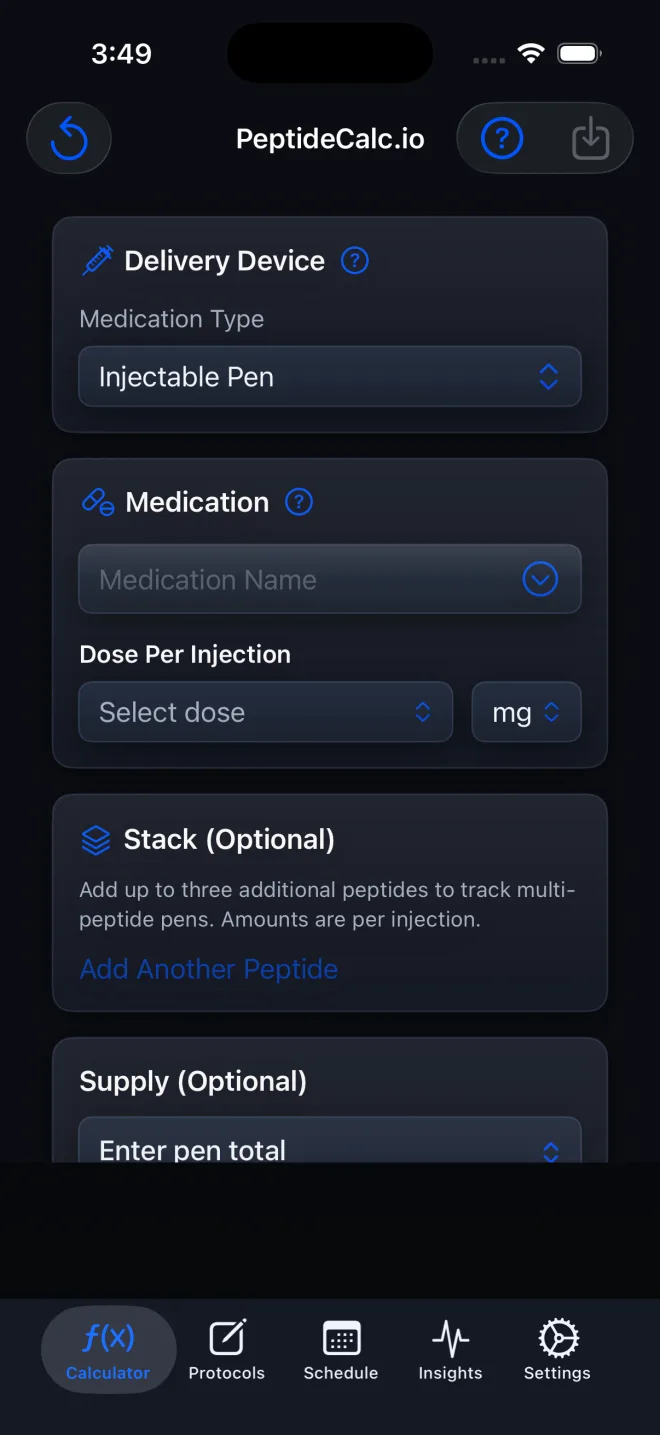
Step-by-step instructions
Step 1: Choose Injectable Pen
Open Calculator, tap Medication Type, and choose Injectable Pen. The vial and syringe-ruler fields are replaced by medication and pen controls.
Step 2: Choose the matching medication or Custom
In Medication, search the available entries, choose a saved protocol, or use Custom and type a name. Select only an entry that matches the actual device and label.
Step 3: Select the packaged strength
Choose the strength that matches the package. If the exact labeled strength is not represented and custom entry is available, enter the source value and matching unit rather than choosing a nearby preset.
Step 4: Enter the supplied dose per injection
Use the dose control to record the amount per injection from your existing instructions. Confirm the unit as well as the number. PeptideCalc does not determine this amount.
Step 5: Record Pen Limits when shown
Some compatible IU-configured pen selections show Pen Limits for the labeled maximum dose and pen volume. Enter those label values only when the section appears and the information is available. The app uses them as validation context.
Step 6: Add Supply information if you want an estimate
Under Supply (Optional), choose Amount to enter the total amount in the pen or Injections to enter a known count. PeptideCalc calculates the corresponding remaining-injection estimate from the dose you entered.
Step 7: Review the summary and save if needed
Check the medication name, packaged strength, dose unit, and optional supply. Tap Save Protocol if you want to reuse the setup or create a schedule.
Questions about this PeptideCalc workflow
When should I use Injectable Pen instead of Peptide Vial?
Use Injectable Pen when the actual product is a prefilled pen or compatible injector. Peptide Vial is for a content-and-water vial calculation with a matching syringe.
What if my prefilled pen is labeled in IU?
Keep the actual package form primary: choose Injectable Pen. The HGH, hCG (IU) Medication Type is the IU-labeled vial-and-water workflow, not a general destination for every product that mentions IU.
Does selecting a medication preset recommend that product or dose?
No. Presets only populate supported data-entry choices. Confirm every label and supplied dose value yourself, and use Custom when the available entries do not match.
Do I have to enter Supply?
No. Supply is optional. Add it only if you want PeptideCalc to estimate the other value between total amount and remaining injections.
Why do I not see BAC water or a syringe ruler?
Those controls belong to vial workflows. Injectable Pen uses packaged-device, per-injection dose, and optional supply fields instead.
Follow the steps in PeptideCalc
Check Apple's listing for the current price, compatibility, and availability.

Related PeptideCalc resources
Browse all PeptideCalc tutorials.