How to Track Medications and Supplements in PeptideCalc
Direct answer
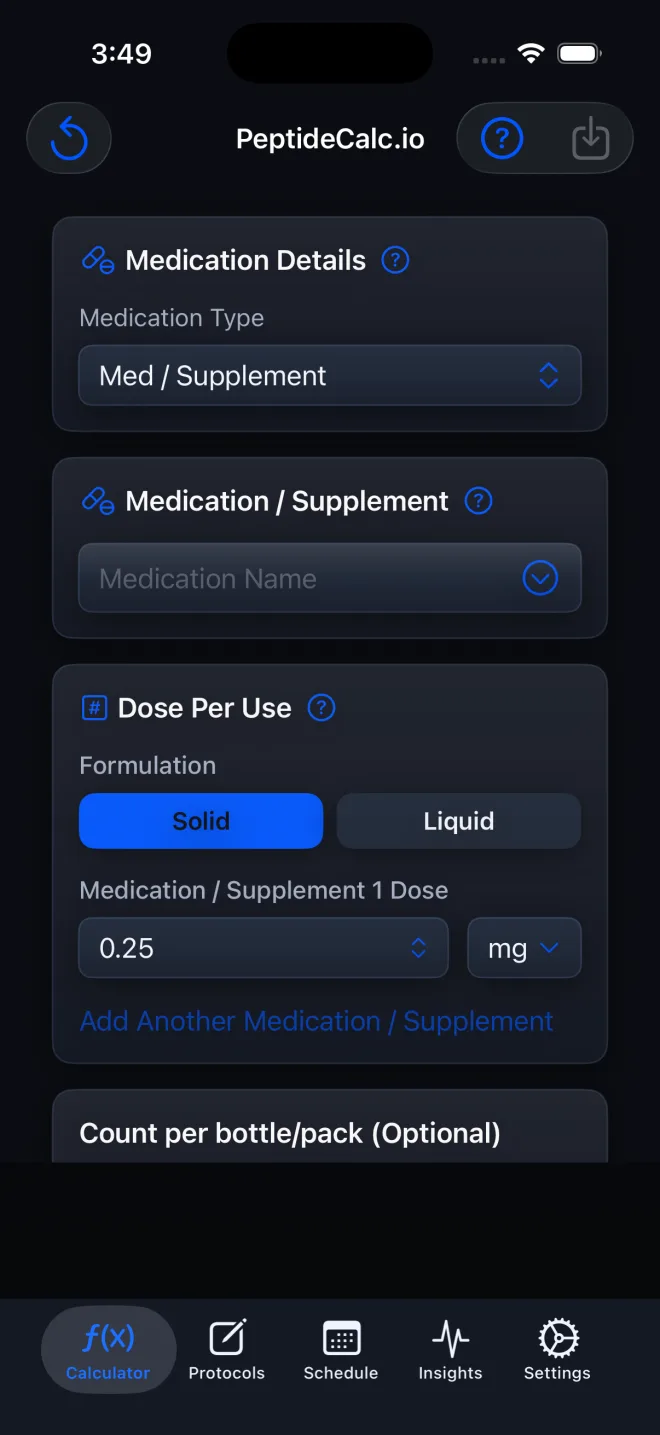
Open Calculator, choose Medication / Supplement, select a saved or built-in entry or type a custom name, then choose Solid or Liquid. Enter the supplied dose; for Liquid, also enter the labeled concentration so PeptideCalc can calculate mL. Optional supply tracks count for solids or total bottle volume for liquids.
Medication / Supplement is the non-injectable calculator workflow. Solid is count-based. Liquid keeps the dose in its labeled amount unit, uses concentration to derive a volume, and can estimate how many doses remain in a bottle or pack.
This workflow records information you already have. It does not identify a supplement, select a medication, or decide a dose, schedule, or combination.
Scope: This page explains PeptideCalc controls and software workflows. It does not choose a medication, dose, liquid, syringe mark, preparation method, or administration technique. Use the product label and instructions from a licensed clinician or pharmacist to decide whether any input or result is appropriate. Medication / Supplement is for organizing supplied solid or liquid non-injectable information. It is not medication or supplement advice.
These labels and steps were checked in the public PeptideCalc 2.7.7 app on .
See the steps in PeptideCalc
Step-by-step instructions
Step 1: Choose Medication / Supplement
Open Calculator, tap Medication Type, and choose Medication / Supplement. The Calculator opens the Medication / Supplement and dose cards instead of vial or pen fields.
Step 2: Choose an entry or type a custom name
Search the medication library, choose a saved protocol, or switch to Custom and enter the name you want to recognize later. A library entry is a data-entry shortcut, not a product recommendation.
Step 3: Choose Solid or Liquid
Under the dose card, choose Solid for count-based medications or supplements. Choose Liquid when the label provides an amount per liquid volume.
Step 4: Enter a supplied solid dose
For Solid, use Medication / Supplement 1 Dose to choose the packaged strength or enter the supplied amount with its matching unit. Optional additional rows can record an existing multi-item stack.
Step 5: Enter a supplied liquid dose and concentration
For Liquid, enter the dose amount and unit, then enter Liquid Concentration as an amount per volume in mL exactly as labeled. PeptideCalc displays the corresponding volume per dose.
Step 6: Add optional supply information
For Solid, Count per bottle/pack (Optional) tracks the item count. For Liquid, Total volume per bottle/pack (Optional) records the full volume in mL. PeptideCalc uses the current dose to estimate how many doses remain.
Step 7: Review and save the protocol
Confirm the formulation, amount, unit, concentration, and optional supply. Tap Save Protocol to name the setup and optionally create a schedule.
Questions about this PeptideCalc workflow
What does Solid mean in Medication / Supplement?
Solid is the count-based workflow for items such as tablets or capsules. Its optional supply field records the count per bottle or pack.
How does PeptideCalc calculate a liquid medication volume?
It divides the supplied dose amount by the labeled concentration you enter and displays the corresponding volume in mL. Check that the amount and concentration units match your source.
Can I track more than one medication or supplement together?
The Solid and Liquid workflows can add additional Medication / Supplement dose rows for an existing stack. This records the combination you enter; it does not recommend combining products.
Is Supply required?
No. Count per bottle/pack and Total volume per bottle/pack are optional. They are used only for supply and remaining-dose estimates.
Why do I not see a syringe result?
Medication / Supplement is the solid-or-liquid non-injectable workflow. Choose the Medication Type that matches the actual product form if you need a vial or injectable-pen calculation.
Follow the steps in PeptideCalc
Check Apple's listing for the current price, compatibility, and availability.

Related PeptideCalc resources
Browse all PeptideCalc tutorials.