How to Track Health Trends in PeptideCalc
Direct answer
Open Insights, keep Metrics selected, choose a biometric and date range, and review the trend chart. To add a value yourself, tap the add menu and choose Add Entry. To import supported data, open Settings > Data & Sync > Apple Health, turn on sync, authorize read access, and tap Sync Now. Manual entries are eligible for PeptideCalc iCloud Sync and backup/export files; imported Apple Health samples stay on the device and are excluded from both transfer paths.
Insights can chart built-in metrics such as weight and resting heart rate, subjective scores, lab markers, and custom metrics. The selected metric and date range control what the trend card displays; logged-dose overlays can add schedule context without changing the biometric data.
Manual entries and Apple Health imports are different record sources. Manual entries are created in PeptideCalc. Apple Health access is read-only, and PeptideCalc keeps the imported copy on the device where the import ran.
Scope: This page explains PeptideCalc controls and software workflows. It does not choose a medication, dose, liquid, syringe mark, preparation method, or administration technique. Use the product label and instructions from a licensed clinician or pharmacist to decide whether any input or result is appropriate. Trend charts organize values you record or authorize for import. They do not diagnose a condition or determine a treatment change.
These labels and steps were checked in the public PeptideCalc 2.7.7 app on .
See the steps in PeptideCalc
Step-by-step instructions
Step 1: Open Insights and select Metrics
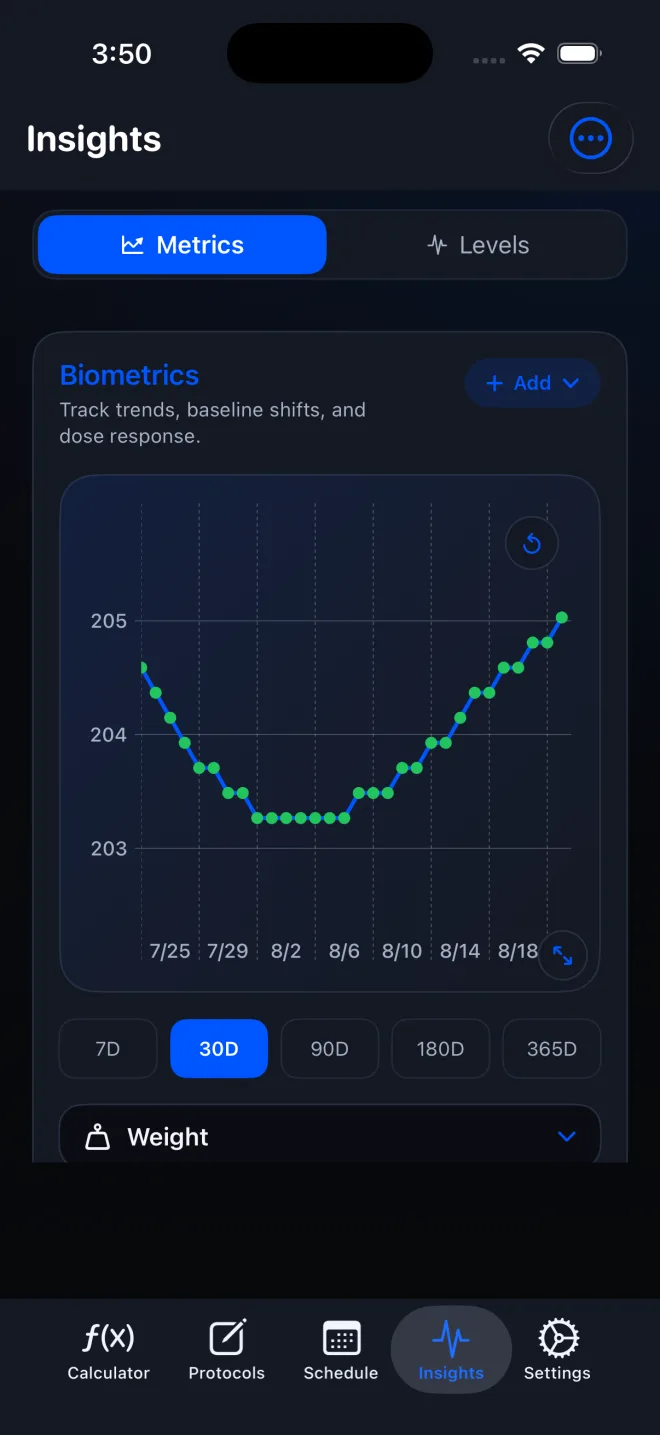
Select Insights in the tab bar, then choose Metrics at the top. The Biometrics card contains the chart, metric picker, range picker, recent entries, and add menu.
Step 2: Choose the metric and time range
Use the metric picker below the chart to choose Weight, Resting Heart Rate, Sleep, another built-in metric, or a custom metric. Choose the range you want to review. The chart and summaries update for that selection.
Step 3: Add a manual entry
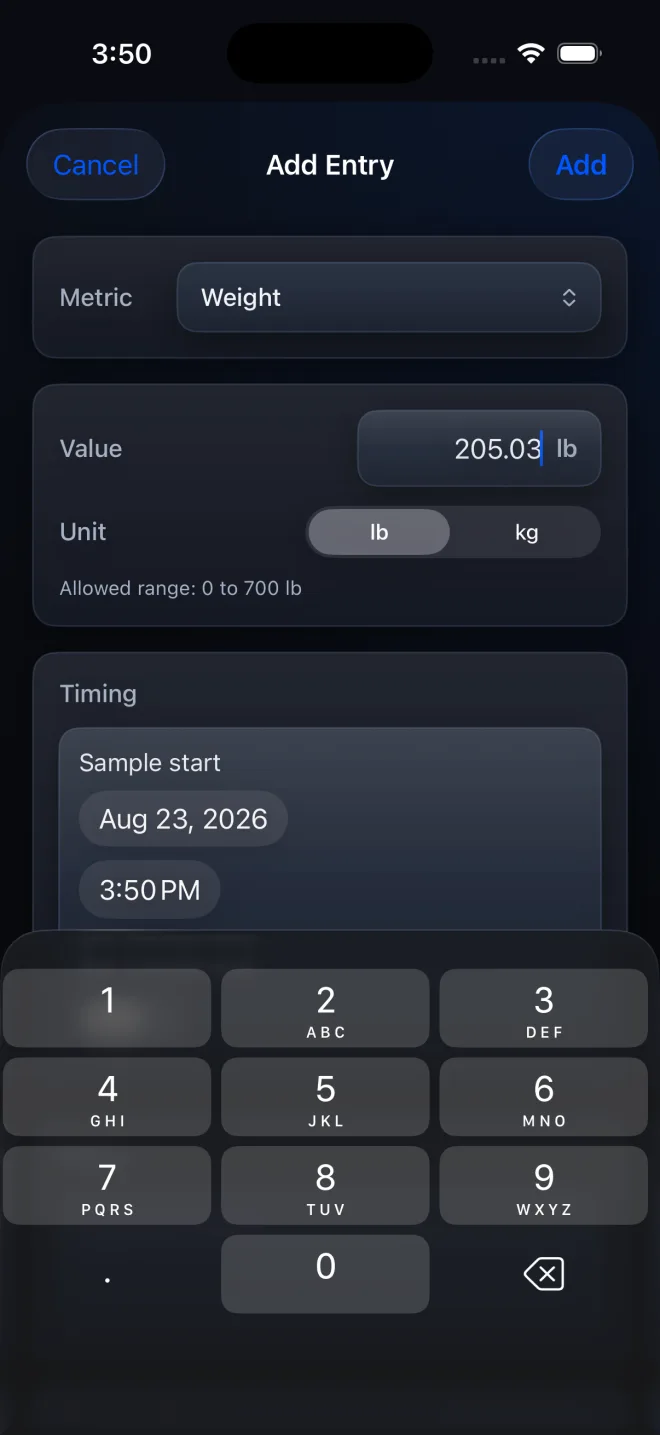
Open the add menu on the Biometrics card and choose Add Entry. Select the Metric, enter the Value, confirm the sample date and time, add optional Notes, then tap Add. Weight entries also let you choose lb or kg.
Step 4: Review or correct manual entries
Tap Manual entries beside Recent entries. Use All Biometrics to filter the list, tap a row to edit it, or swipe left for Edit and Delete. The plus button adds another manual entry from this screen.
Step 5: Open the Apple Health connection
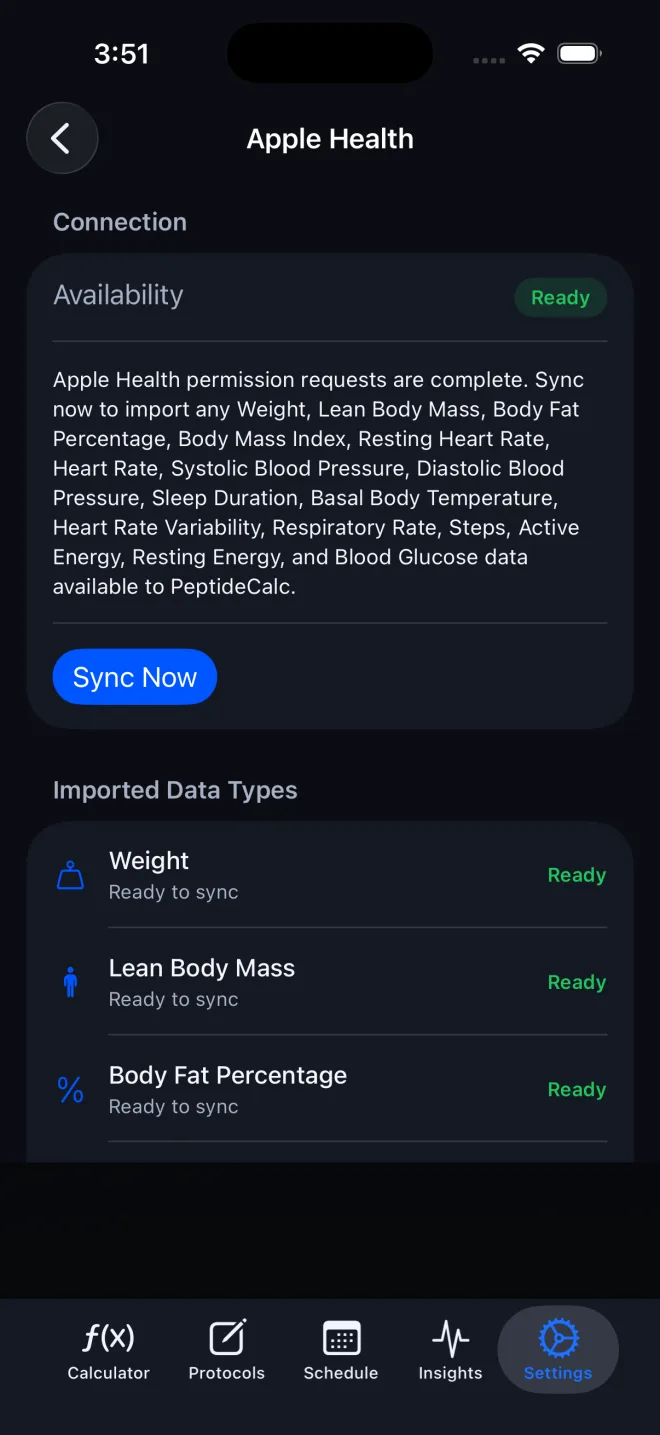
Open Settings, tap Data & Sync, then tap Apple Health. The screen lists the data types this version can import and the current result for each supported metric.
Step 7: Tap Sync Now and return to the chart
Tap Sync Now to import available authorized samples, then return to Insights > Metrics and select the relevant metric and range. Apple does not report exact per-metric read permission state to apps, so PeptideCalc reflects permission requests and actual sync results.
Step 8: Keep the two data sources separate
Manual Insights entries are eligible for PeptideCalc iCloud Sync and PeptideCalc backup/export files when you use those features. Imported Apple Health samples stay on this device and are not uploaded by PeptideCalc iCloud Sync or included in PeptideCalc backup/export files. Apple's App Review Guidelines state that apps may not store personal health information in iCloud. In PeptideCalc 2.7.7, HealthKit-derived samples are also excluded from its backup/export files.
Questions about this PeptideCalc workflow
How do I track weight or resting heart rate in PeptideCalc?
Open Insights > Metrics, use Add Entry to save the value manually, or authorize Apple Health for a supported import. Select Weight or Resting Heart Rate below the chart and choose a date range to review the trend.
Which metrics can PeptideCalc import from Apple Health?
The Apple Health screen lists the supported data types in the installed version. Examples include body-composition measurements, resting heart rate and other supported vitals, sleep duration, steps, and energy values. Workout records and active heart-rate samples are not imported.
Does PeptideCalc write data to Apple Health?
No. The integration is a read-only import. Manually added PeptideCalc entries are stored in PeptideCalc and are not written back to Apple Health.
Do imported Apple Health samples sync to my other PeptideCalc devices?
No. The imported copies stay on the device where the import runs and are excluded from PeptideCalc iCloud Sync and PeptideCalc backup/export files. Authorize and import from Apple Health separately on another supported device if you want that device to show its own imported copy.
Do manual biometric entries sync or appear in backups?
They can. Manual Insights entries are eligible for PeptideCalc iCloud Sync and PeptideCalc backup/export files when you enable or create those features. They are not treated as imported HealthKit samples.
What happens if I turn off Apple Health sync in PeptideCalc?
PeptideCalc stops imports and deletes the Apple Health samples it stored on that device. Manual biometric entries remain, and the action does not delete data from Apple Health itself.
Why is an expected Apple Health metric missing?
Review the Imported Data Types and sync result on Settings > Data & Sync > Apple Health, check PeptideCalc's read permissions in Apple's Health app or Settings, and tap Sync Now again. Apple does not expose exact per-metric read permission details to apps.
Follow the steps in PeptideCalc
Check Apple's listing for the current price, compatibility, and availability.

Official sources and resources
Related PeptideCalc resources
Browse all PeptideCalc tutorials.