How to Sync PeptideCalc Data with iCloud
Direct answer
PeptideCalc does not have a separate login. It uses the Apple Account signed in to iCloud on your device. In PeptideCalc, open Settings, tap Data & Sync, tap iCloud Sync, and turn on Enable iCloud Sync. After it is enabled, changes sync automatically and you can tap Sync Now when you want to start a manual sync.
iCloud Sync keeps supported PeptideCalc records available on devices signed in to the same Apple Account. Your device must be signed in to iCloud before the Enable iCloud Sync switch becomes available.
Sync is not a copy of every setting on the device. Apple Health imports stay on the device, and theme, notification preferences and state, and the iCloud Sync setting itself are not copied. Automatic Backups and exported files are separate safeguards.
Scope: This page explains PeptideCalc controls and software workflows. It does not choose a medication, dose, liquid, syringe mark, preparation method, or administration technique. Use the product label and instructions from a licensed clinician or pharmacist to decide whether any input or result is appropriate. iCloud Sync uses the Apple Account signed in on the device. It is separate from Apple Family Sharing, local Automatic Backups, and file exports.
These labels and steps were checked in the public PeptideCalc 2.7.7 app on .
See the steps in PeptideCalc
Step-by-step instructions
Step 1: Make sure the device is signed in to iCloud
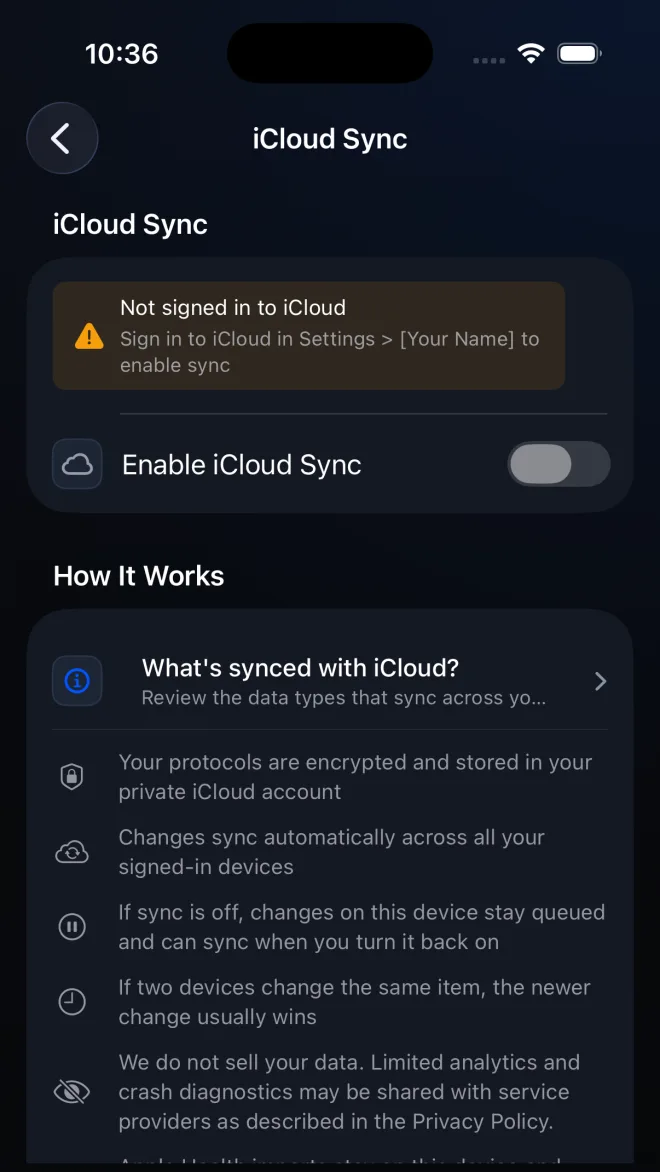
Open the Apple Settings app and check the Apple Account shown at the top. If PeptideCalc says Not signed in to iCloud, sign in there first. The sync switch remains unavailable until iCloud is ready.
Step 2: Open PeptideCalc Settings
Open PeptideCalc and select Settings in the tab bar.
Step 3: Open Data & Sync
Under Settings, tap Data & Sync. This section contains iCloud Sync, Automatic Backups, Import Data, and Export Data.
Step 4: Open iCloud Sync
Tap iCloud Sync. The screen shows the current account status and an explanation of how changes move between your signed-in devices.
Step 5: Turn on Enable iCloud Sync
Turn on Enable iCloud Sync and let the first sync finish before editing the same data on another device.
Step 6: Check the status or tap Sync Now
When sync is enabled, review Status & Controls for the last sync result. Tap Sync Now if you want PeptideCalc to start a manual sync. Apple Health imports still remain on this device.
Questions about this PeptideCalc workflow
Do I need a PeptideCalc account or password?
No. PeptideCalc has no separate login for sync. It uses the private iCloud account connected to the Apple Account signed in on your device.
What PeptideCalc data syncs through iCloud?
PeptideCalc 2.7.7 syncs protocols, schedules, logged scheduled doses, as-needed dose logs, inventory items, injection sites, manual Insights entries, goals, custom metrics, and Insights settings. It does not upload Apple Health imports. Theme, notification preferences and state, and the iCloud Sync setting itself also stay outside this sync.
Are Automatic Backups the same as iCloud Sync?
No. iCloud Sync keeps supported records aligned across devices. Automatic Backups are local restore points inside PeptideCalc. Keep a separate exported backup before a large import, account change, or data cleanup.
How can I move my data if I cannot use iCloud Sync?
Use Settings > Data & Sync > Export Data to create an All Data JSON file on the old device, then choose that file from Import Data on the new device. The separate JSON transfer tutorial explains the privacy warning and the difference between Merge and Replace Current Data.
What should I do if PeptideCalc says the iCloud account changed?
PeptideCalc offers Upload This Device's Data, Replace This Device With iCloud Data, or Keep Sync Off. Choose only after deciding which copy you intend to keep. Replace This Device With iCloud Data can clear the current synced data on this device after PeptideCalc confirms that the signed-in iCloud account already has PeptideCalc data. If you are unsure, keep sync off and export a backup first.
What happens if I edit the same item on two devices?
The newer change usually wins. Let one device finish syncing before editing the same protocol, schedule, or log on another device. Changes made while sync is off stay queued and may sync after you turn it back on.
Why is my PeptideCalc data not showing on my new iPhone?
Check that both devices use the same Apple Account, that Enable iCloud Sync is on in PeptideCalc on both devices, and that the first device finished syncing before you tap Sync Now on the new iPhone. If PeptideCalc reports an account change or unavailable iCloud account, keep sync off and export a backup before choosing a replacement option.
Follow the steps in PeptideCalc
Check Apple's listing for the current price, compatibility, and availability.

Related PeptideCalc resources
Browse all PeptideCalc tutorials.