How to Restore an Automatic Backup in PeptideCalc
Direct answer
Go to Settings > Data & Sync > Automatic Backups, find a backup under Restore Points, tap Restore, select the data types, then choose Merge (Keep Current Data) or the destructive Replace Current Data only after reviewing the preview and iCloud warning.
Automatic backup files are stored locally on the current device and are preserved through app updates. Because they are local, keep a separate export if you need protection from losing the device or deleting and reinstalling the app.
Merge keeps current local data and adds missing items from the backup. Replace Current Data removes current items in the selected categories when they are not in the backup snapshot. If iCloud Sync is enabled, the restored result can upload and overwrite or re-add data on other devices.
Scope: This page explains PeptideCalc controls and software workflows. It does not choose a medication, dose, liquid, syringe mark, preparation method, or administration technique. Use the product label and instructions from a licensed clinician or pharmacist to decide whether any input or result is appropriate. Replace Current Data is destructive for the selected categories. Read the restore preview and iCloud Sync message before confirming.
These labels and steps were checked in the public PeptideCalc 2.7.7 app on .
See the steps in PeptideCalc
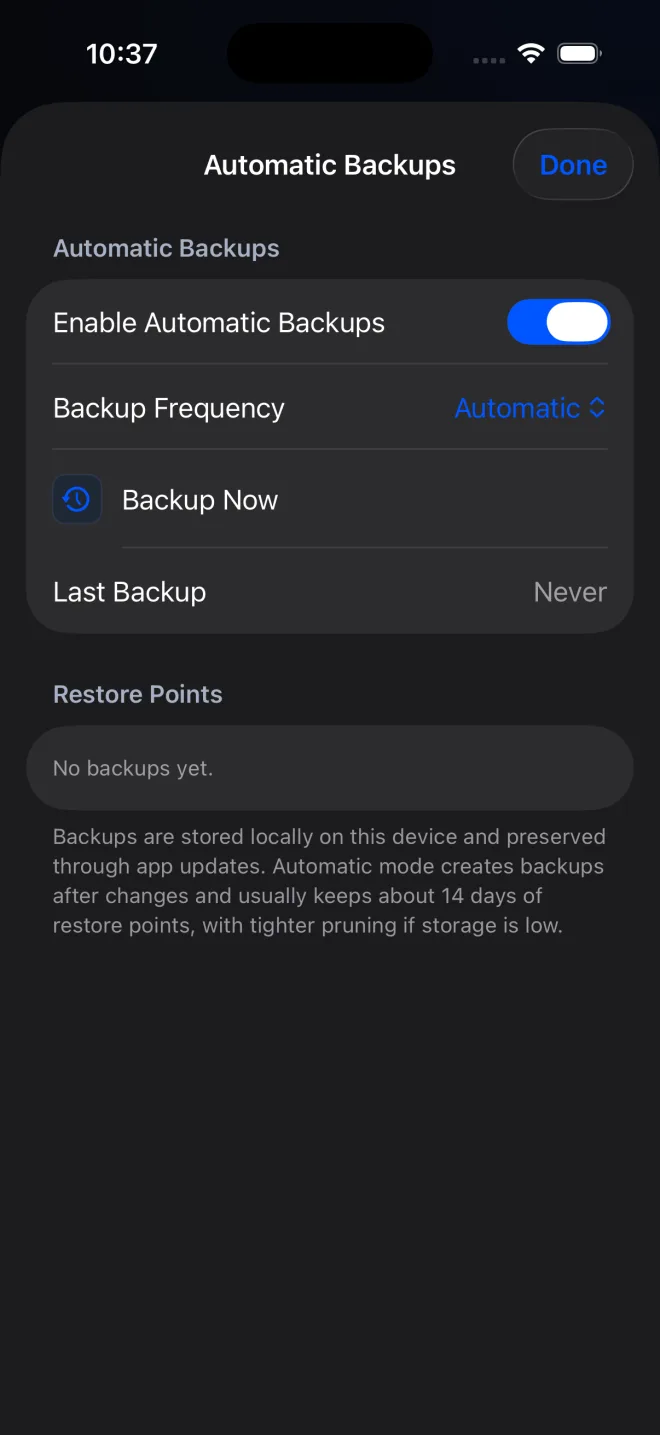
Step-by-step instructions
Step 1: Open Automatic Backups
Open Settings, tap Data & Sync, then tap Automatic Backups.
Step 2: Choose a restore point
Under Restore Points, review the dates and details, then tap Restore beside the backup you want.
Step 3: Review the backup contents
On Restore Backup, use Choose Data to Restore to select only the categories you intend to restore. Read This Backup Contains, Restore Details, and any iCloud Sync message.
Step 4: Choose Merge or Replace
Choose Merge (Keep Current Data) to keep current local data and add missing backup items. Choose Replace Current Data only when you intend to remove current items in the selected categories when they are absent from the backup snapshot.
Step 5: Verify the result
After the restore completes, open the relevant Protocols, Schedules, history, sites, or inventory screens and confirm the expected records are present.
Questions about this PeptideCalc workflow
What is the difference between Merge and Replace Current Data?
Merge keeps current local data and adds missing items from the backup. Replace Current Data can remove current items in the selected categories when those items are not in the backup snapshot.
Are Automatic Backups the same as PeptideCalc iCloud Sync?
No. Automatic Backups are local PeptideCalc restore points on the current device and are separate from PeptideCalc iCloud Sync. Keep an exported backup outside the app when you need independent recovery.
Can restoring affect my other devices?
Yes, when iCloud Sync is enabled. A restore can upload to iCloud and overwrite or re-add data on your other devices. If sync is temporarily unavailable, the change stays local until sync resumes.
Do automatic backups include all app settings?
No. Most app settings, including theme, notification preferences or state, and iCloud Sync settings, are not included.
Can I restore an Automatic Backup after deleting or reinstalling PeptideCalc?
Do not rely on the in-app restore points for that situation. They are local to the app on the current device. Keep a separate JSON or Backup CSV export outside PeptideCalc before deleting the app, replacing the device, or making a large data change.
Follow the steps in PeptideCalc
Check Apple's listing for the current price, compatibility, and availability.

Related PeptideCalc resources
Browse all PeptideCalc tutorials.