How to Schedule Multiple Dose Times Per Day in PeptideCalc
Direct answer
Open a saved protocol's Schedules, add or edit a daily schedule, and find Dose Times. Tap Add time for each additional time, set each clock time, then Save. PeptideCalc uses the saved protocol dose at every time; it does not divide a daily total automatically.
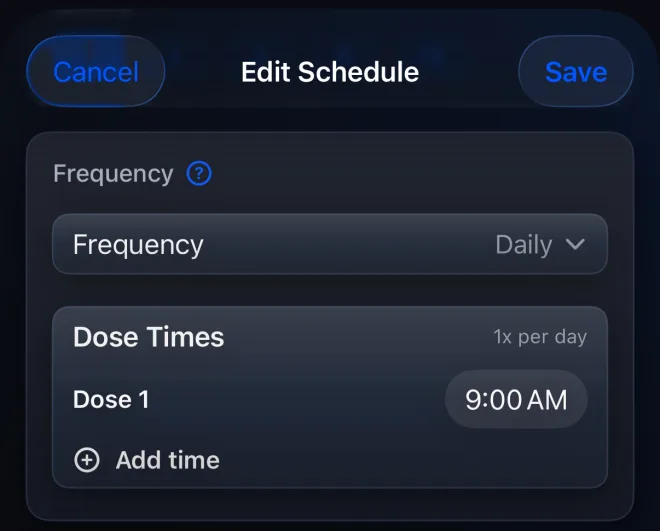
Dose Times lets one schedule create more than one entry in a day. PeptideCalc supports up to four times on the same daily schedule.
Each scheduled time uses the protocol's saved dose. Add times only when that per-time dose and timing match the schedule you independently chose or were instructed to track.
Scope: This page explains PeptideCalc controls and software workflows. It does not choose a medication, dose, liquid, syringe mark, preparation method, or administration technique. Use the product label and instructions from a licensed clinician or pharmacist to decide whether any input or result is appropriate. Each time uses the protocol's saved dose. PeptideCalc does not divide a daily total, choose dose times, or decide how often a dose should occur.
These labels and steps were checked in the public PeptideCalc 2.7.7 app on .
See the steps in PeptideCalc
Step-by-step instructions
Step 1: Open the protocol's Schedules
Open Protocols, tap the three-dot menu for the saved protocol, then tap Schedules.
Step 2: Add or edit a daily schedule
Tap Add schedule to create one, or tap an active schedule to edit it. Set Frequency to the daily cadence you intend to track.
Step 3: Find Dose Times
In Create Schedule or Edit Schedule, scroll to Dose Times. Dose 1 is the first time for the day.
Step 4: Tap Add time
Tap Add time for each additional scheduled time, then set the clock time for Dose 2, Dose 3, or Dose 4. The editor allows up to four times per day.
Step 5: Confirm the per-time dose
Check that the protocol's saved dose is the amount you intend to record at each listed time. PeptideCalc does not split or recalculate a daily total across the times.
Step 6: Save and check Calendar
Tap Save, then review the day in Calendar to confirm that every intended time appears once.
Questions about this PeptideCalc workflow
How many dose times can I add to one daily schedule?
PeptideCalc 2.7.7 supports up to four Dose Times on one daily schedule.
Does PeptideCalc divide my daily total across the times?
No. Each time uses the saved protocol dose. Enter a per-time dose only when it matches the instructions you are following.
How do I remove an extra dose time?
In Dose Times, tap the minus control beside the time you want to remove, then save the schedule.
Follow the steps in PeptideCalc
Check Apple's listing for the current price, compatibility, and availability.

Related PeptideCalc resources
Browse all PeptideCalc tutorials.