How to Change a Schedule Color in PeptideCalc
Direct answer
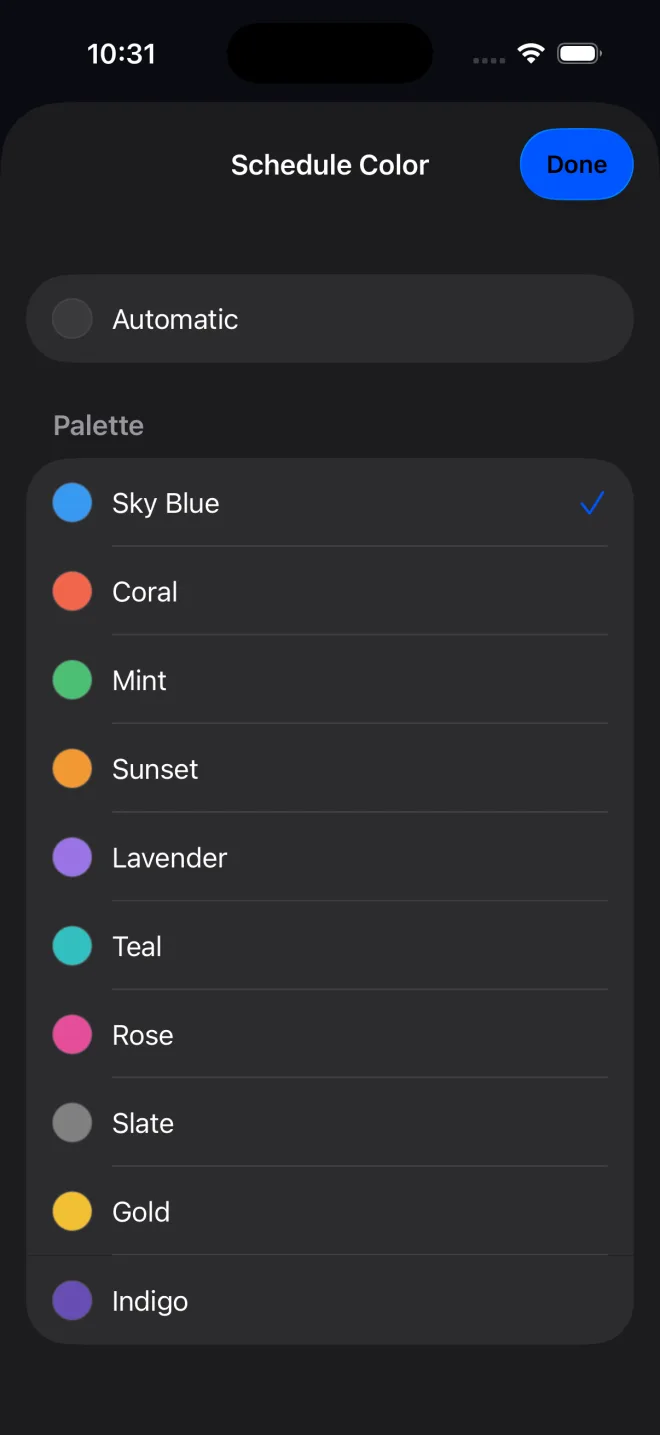
Open Protocols, tap the three-dot menu for the protocol, choose Schedules, and open the active schedule. Under Appearance, tap Schedule Color, choose Automatic or one of the 10 preset colors, tap Done, then Save.
Schedule colors help distinguish schedules in Protocols, Schedules, and Calendar. Changing the color is visual only; it does not change the dose, timing, reminders, or history.
The public PeptideCalc 2.7.7 app offers Automatic plus 10 preset colors. This page does not describe unreleased color controls.
Scope: This page explains PeptideCalc controls and software workflows. It does not choose a medication, dose, liquid, syringe mark, preparation method, or administration technique. Use the product label and instructions from a licensed clinician or pharmacist to decide whether any input or result is appropriate. Schedule Color changes visual identification only; it does not alter the schedule or its saved data.
These labels and steps were checked in the public PeptideCalc 2.7.7 app on .
Watch the walkthrough
Read the video transcript
- In Edit Schedule, scroll to Appearance.
- Tap Schedule Color.
- Choose Automatic or one of the preset colors, then tap Done.
Step-by-step instructions
Step 1: Open the protocol's Schedules
Open Protocols, tap the three-dot menu for the saved protocol, then tap Schedules.
Step 2: Open the active schedule
In the Active section, tap the schedule you want to update to open Edit Schedule.
Step 3: Open Schedule Color
Scroll to Appearance, then tap Schedule Color.
Step 4: Choose Automatic or a preset
Choose Automatic or one of the 10 preset colors: Sky Blue, Coral, Mint, Sunset, Lavender, Teal, Rose, Slate, Gold, or Indigo. Then tap Done.
Step 5: Save the schedule
Back in Edit Schedule, tap Save. The schedule's color markers will update without changing its timing or dose.
Questions about this PeptideCalc workflow
Can I choose a custom schedule color in PeptideCalc 2.7.7?
No. The public 2.7.7 app has Automatic plus 10 preset colors.
What does Automatic do?
Automatic lets PeptideCalc assign the schedule color instead of locking it to one preset.
Will changing the color change reminders or dose history?
No. Schedule Color is a visual setting only.
Follow the steps in PeptideCalc
Check Apple's listing for the current price, compatibility, and availability.

Related PeptideCalc resources
Browse all PeptideCalc tutorials.