How to Import Protocols from CSV in PeptideCalc
Direct answer
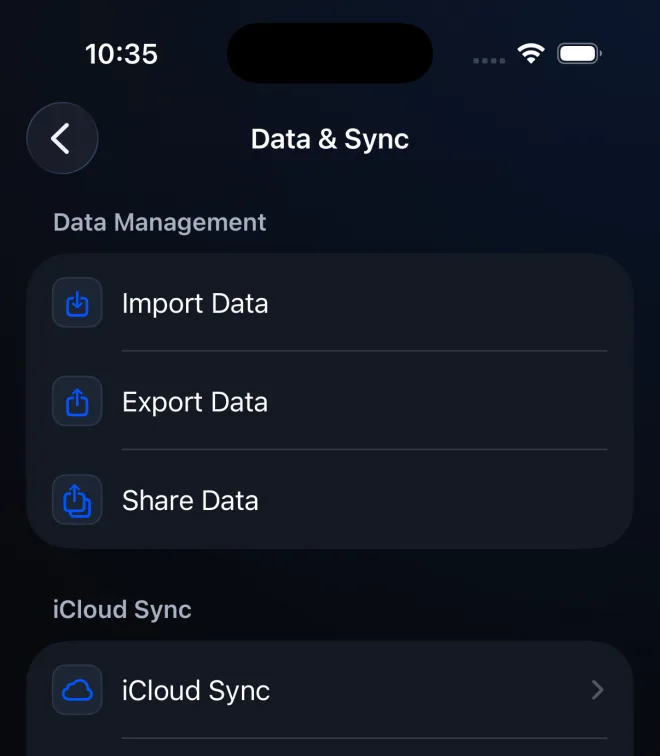
Download the blank PeptideCalc protocol CSV template, keep its headers unchanged, enter one protocol per row, then open Settings > Data & Sync > Import Data, choose the CSV, review the preview, and tap Import Protocols. This import is merge-only, and imported protocols can propagate through iCloud Sync.
Protocol CSV import in PeptideCalc 2.7.7 is protocols-only and merge-only. It adds protocols without replacing current data, and it does not import schedules or dose history.
Keep a fresh JSON backup before a bulk import, use only information from your own labels and care instructions, and review every imported protocol afterward. Treat the completed CSV and backup as private files.
Scope: This page explains PeptideCalc controls and software workflows. It does not choose a medication, dose, liquid, syringe mark, preparation method, or administration technique. Use the product label and instructions from a licensed clinician or pharmacist to decide whether any input or result is appropriate. CSV import adds protocol records only. It does not create schedules or history, the blank template intentionally contains no example values, and imported protocols can upload to other devices when iCloud Sync is enabled.
These labels and steps were checked in the public PeptideCalc 2.7.7 app on .
See the steps in PeptideCalc
Step-by-step instructions
Step 1: Download the blank protocol CSV template
Download the blank PeptideCalc Protocols Template from the related resources on this page. It contains a supported header row for the 2.7.7 importer and no example data.
Step 2: Add one protocol per row
Open the file in a spreadsheet editor, leave the header names unchanged, and enter each protocol on its own row using your own source information. Save the finished file as CSV.
Step 3: Create a current backup
Before a bulk import, use Settings > Data & Sync > Export Data to create a private JSON backup of the current app data.
Step 4: Choose the CSV in Import Data
Return to Settings > Data & Sync, tap Import Data, and choose the completed protocol CSV file.
Step 5: Review the import preview
Confirm that the file is recognized as a protocol import and review any warnings. This path supports Protocols only and does not offer Replace Current Data.
Step 6: Tap Import Protocols
Tap Import Protocols, wait for the import to finish, then open Protocols and review each added record for accuracy.
Questions about this PeptideCalc workflow
Does protocol CSV import include schedules or dose history?
No. In PeptideCalc 2.7.7, this CSV path imports protocols only. It does not import schedules or logged history.
Can a protocol CSV replace my current data?
No. Protocol CSV import is merge-only and does not offer Replace Current Data. Keep a backup anyway so you can recover from incorrect or unwanted rows.
Can I import a CSV made by Share Data?
No. Share Data creates readable summaries, not import files. Use the blank protocol CSV template linked on this page for a protocol import.
Can imported protocols appear on my other devices?
Yes, when iCloud Sync is enabled. The imported protocols can upload to iCloud and appear on other synced devices.
Why does the blank template have no sample row?
The template is intentionally header-only so an example cannot be mistaken for real protocol information. Add only your own records.
What format does the PeptideCalc CSV template expect?
Keep the 12 headers unchanged. Fill the columns through Is Favorite on every row: use plain numbers without unit text in BAC Water, Peptide Content, Desired Amount, Draw Amount, Total Units, and Doses; use mg, mcg, ng, pg, IU, or mL in the unit columns; use the exact stored Syringe Type from PeptideCalc; and use true or false for Is Favorite. Created Date can be left blank or written as YYYY-MM-DD HH:MM:SS +0000. Use only values from your own label and care instructions.
Follow the steps in PeptideCalc
Check Apple's listing for the current price, compatibility, and availability.

Related PeptideCalc resources
Browse all PeptideCalc tutorials.