How to Enter a Multi-Peptide Blend in PeptideCalc
Direct answer
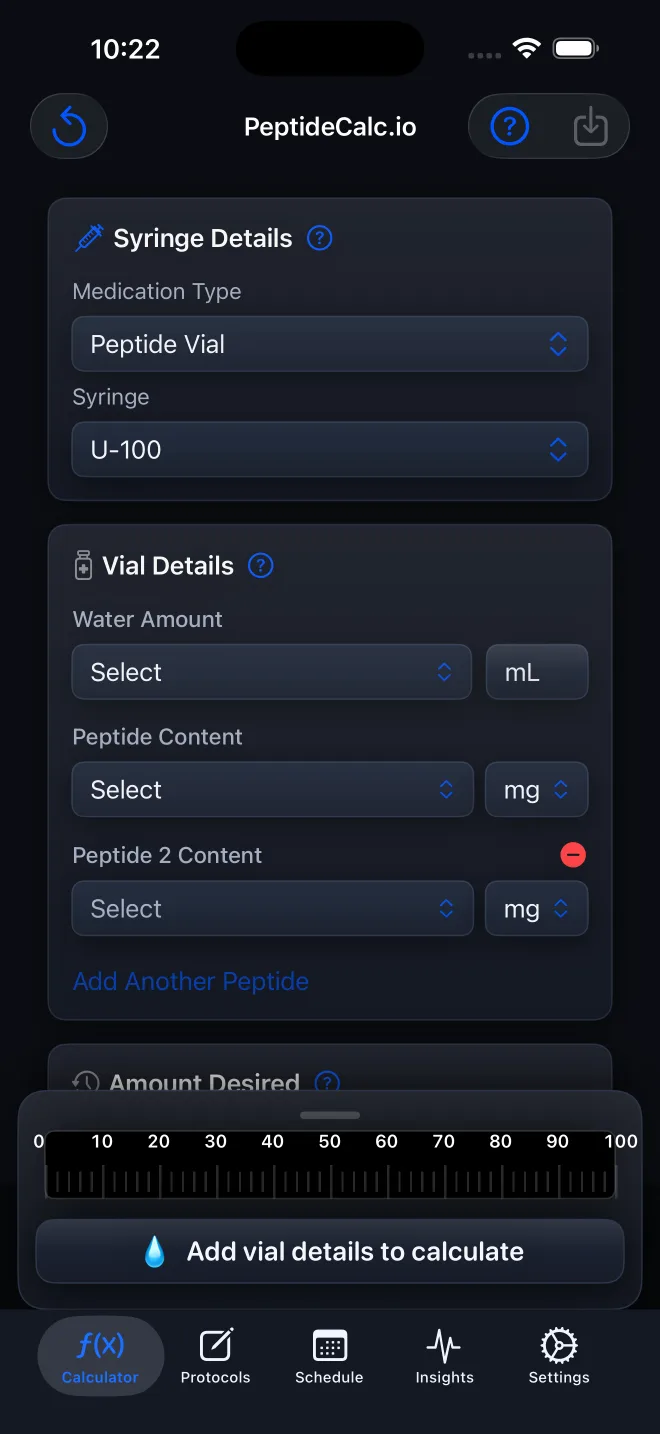
Choose Peptide Vial on Calculator, enter Water Amount and the first Peptide Content, then tap Add Another Peptide for each additional component in the same vial. Enter the supplied Total Dose and PeptideCalc calculates from the component ratio you entered.
The multi-peptide fields describe components that are already together in one vial. Each Peptide Content entry records one labeled component, and the Calculator preserves their ratio when it displays the dose breakdown.
PeptideCalc does not tell you whether to combine substances or what Total Dose to use. This page only explains how to record a blend that has already been supplied to you.
Scope: This page explains PeptideCalc controls and software workflows. It does not choose a medication, dose, liquid, syringe mark, preparation method, or administration technique. Use the product label and instructions from a licensed clinician or pharmacist to decide whether any input or result is appropriate. This workflow records labeled components in one combined vial; it is not an instruction to mix or administer anything.
These labels and steps were checked in the public PeptideCalc 2.7.7 app on .
See the steps in PeptideCalc
Step-by-step instructions
Step 1: Choose Peptide Vial
Open Calculator and choose Peptide Vial under Medication Type.
Step 2: Enter the shared vial details
Select the syringe that matches yours, then enter the supplied Water Amount and the first component under Peptide Content.
Step 3: Tap Add Another Peptide
Tap Add Another Peptide to show the next Peptide Content field. Repeat for each additional labeled component in the same vial, up to four components total.
Step 4: Check every component and unit
Enter each component's full labeled content and select its matching unit. Review the entries before continuing because the app calculates their ratio from these values.
Step 5: Enter the supplied Total Dose
Under Total Dose, enter the independently determined or prescribed total amount. Review the component breakdown and syringe result calculated by PeptideCalc.
Step 6: Name the components when saving
If you save the calculation, tap Save and use Peptide Names (Optional) in Save & Schedule to give the components recognizable names. Create a schedule only if you intend to track one.
Questions about this PeptideCalc workflow
How many components can I enter in one PeptideCalc blend?
The Peptide Vial calculator accepts up to four Peptide Content entries for one combined vial.
Should I use the blend fields for separate vials?
No. The blend fields describe multiple labeled components in the same vial. Track separate vials as separate calculations or saved protocols.
Does PeptideCalc decide the blend ratio or Total Dose?
No. The app derives the ratio from the component contents you enter and calculates from the Total Dose you supply.
Follow the steps in PeptideCalc
Check Apple's listing for the current price, compatibility, and availability.

Related PeptideCalc resources
Browse all PeptideCalc tutorials.